How to setup passkey authentication for Microsoft accounts
Passkeys are an alternative to using the Microsoft Authenticator mobile app. If you would like to setup the Microsoft Authenticator app instead, please see our setting up Microsoft Authenticator page.
Go to the My Account page for your Nottingham College Microsoft account. This is accessible from any Microsoft app in the top right-hand corner by clicking on the display picture and selecting “My Account”.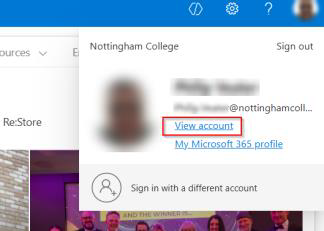
On the left menu that appears, select My Account, then Security Info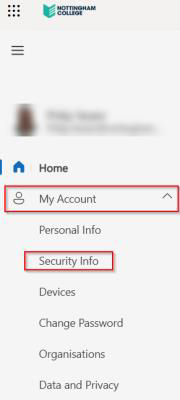
From the Security Info page, select Add sign-in method (you can also review your existing sign-in methods here)
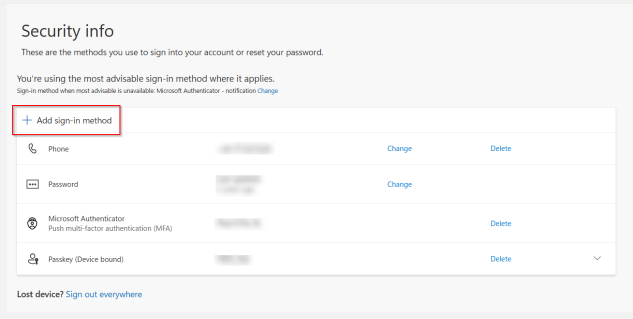
For Add a sign-in method, choose Passkey.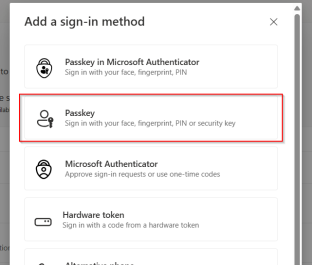
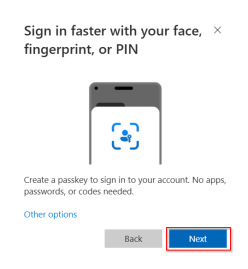
On the sign-in message, click next.
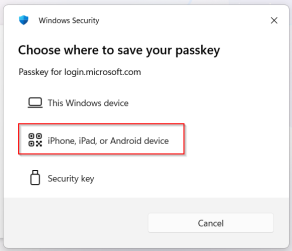
For the “Save your passkey” settings, change the default option to “iPhone, iPad, or Android device” to setup the Passkey on your mobile device
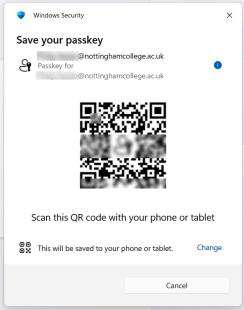
Scan the QR code that appears with your mobile camera
Follow the prompts on your mobile device to save the Passkey. Select Done on the browser. You will now be able to view the Passkey on your Security info page and use it to sign-in as your chosen MFA method when prompted.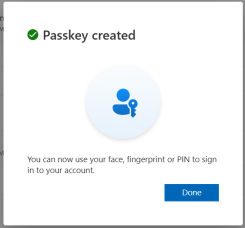
- Article reference number: KA-01149
- Last updated: Tuesday 24th November 2026 2:45 pm