Connecting to the Nottingham College Guest WiFi on campus
The Nottingham College guest WiFi network is available to all external visitors, contractors, or anyone who is not a staff member or current student at the college.
If you are visiting from another educational institution, you can also use our Eduroam WiFi network, as Nottingham College is a participating institution.
Connecting to our guest WiFi is a two-step process:
The first step requires the guest to connect to the NottinghamCollegeGuest network and sign in to the secure portal to request internet access.
The nominated staff member provided in step one approves the request.
Step 1: Requesting access (Guest)
Connect to the “NottinghamCollegeGuest” WiFi network, this is an open network with no password. The secure guest portal will automatically open and display “Your Name” and “Your Email” fields. Please enter your full name and a valid email address, then click continue.
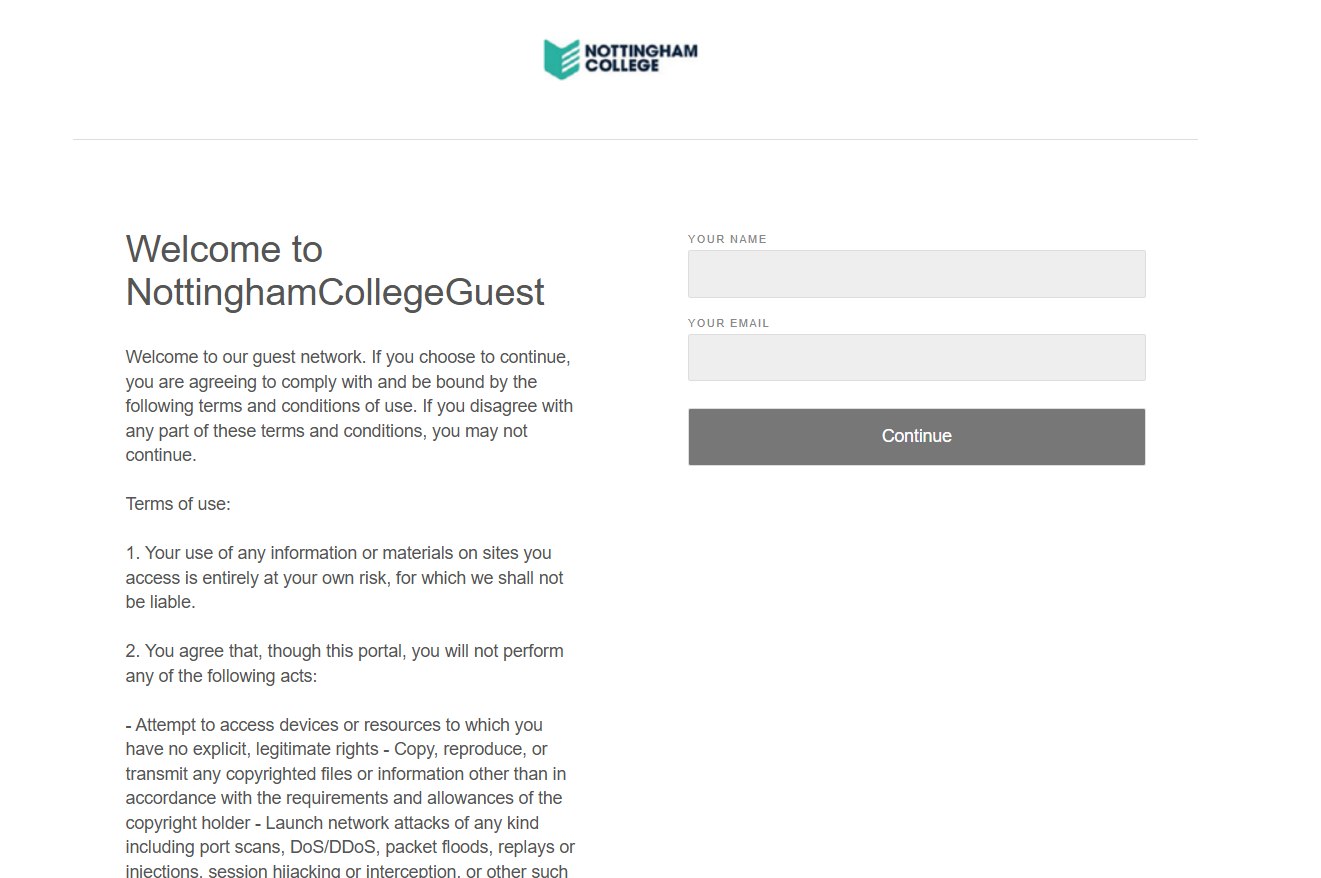
The guest will then be asked to provide a sponsor email. This will be the nominated staff member at Nottingham College who will approve your internet access request. All Nottingham College staff email addresses are in the format of firstname.lastname@nottinghamcollege.ac.uk.
The guest will also need to tick the “accept” box and then click the request internet access button to initiate the guest internet access request process.
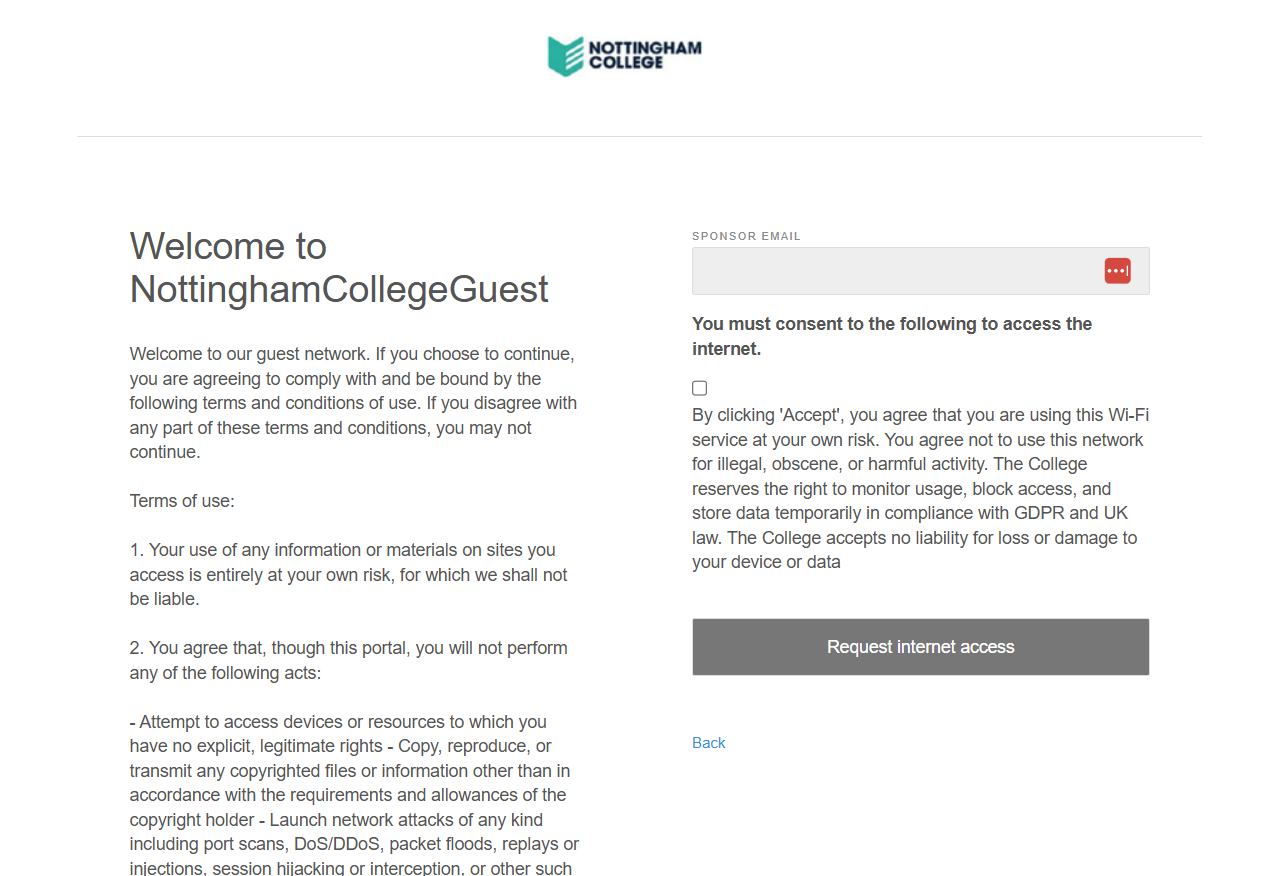
Once the request internet access process has been submitted, this will now send an approval email to the nominated staff member. The guest can keep this window open while the nominated staff member completes step two.
Step 2: Approving guest access (Nominated staff member)
The nominated staff member should receive an email to their staff email address notifying them of the internet access request. They will need to use the “Click here to approve access" link in this email, like the example below.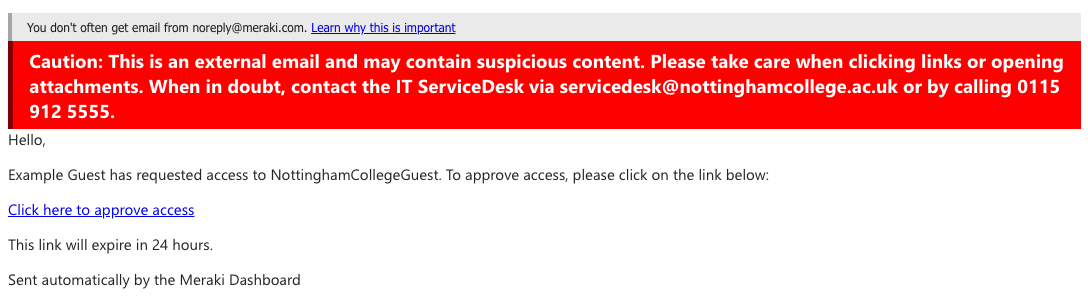
This will open a web page in your default web browser to approve the request.
The following web page will be shown with the name of the guest requesting internet access.
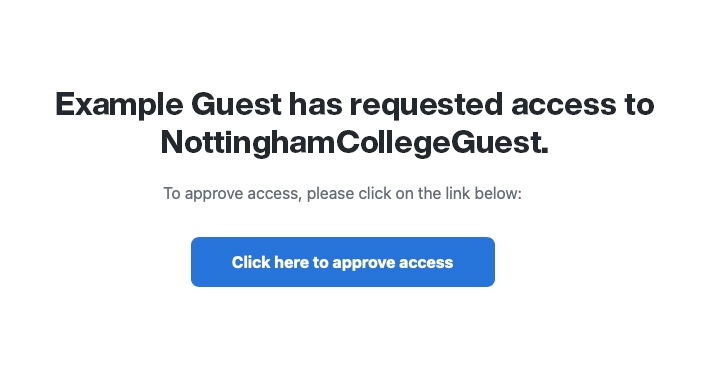
Use the “Click here to approve access” button to approve the internet access request.
This will now grant internet access to the guest and completes the process. If successful, the guest/visitor will be automatically redirected to the Nottingham College website homepage. The guest should also receive a confirmation email confirming this.
Guest WiFi access is granted for 7 days. The guest can freely connect and disconnect from the guest WiFi without needing a staff member to approve the internet access request each time.
After the 7 days, the same process must be repeated to allow internet access via the guest network again.
- Article reference number: KA-01071
- Last updated: Tuesday 11th August 2026 9:32 pm