Resetting your Microsoft account password
If you have forgotten your password to your college Microsoft account, Microsoft provides the Self Service Password Reset (SSPR) portal, which can help you reset your password. You can use this service while on campus or off campus.
Note: You must have multi-factor authentication enabled to use this service.
To begin, go to the SSPR portal which will provide the following form: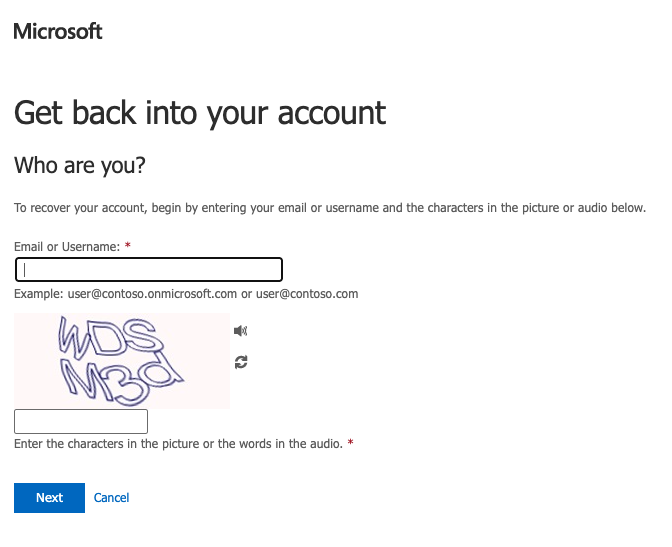
Enter your Nottingham College email address. The logo at the top of the page will change to the Nottingham College logo when a valid Nottingham College domain has been used e.g. nottinghamcollege.ac.uk or student.nottinghamcollege.ac.uk. You will also need to enter the correct anti-bot/captcha check.
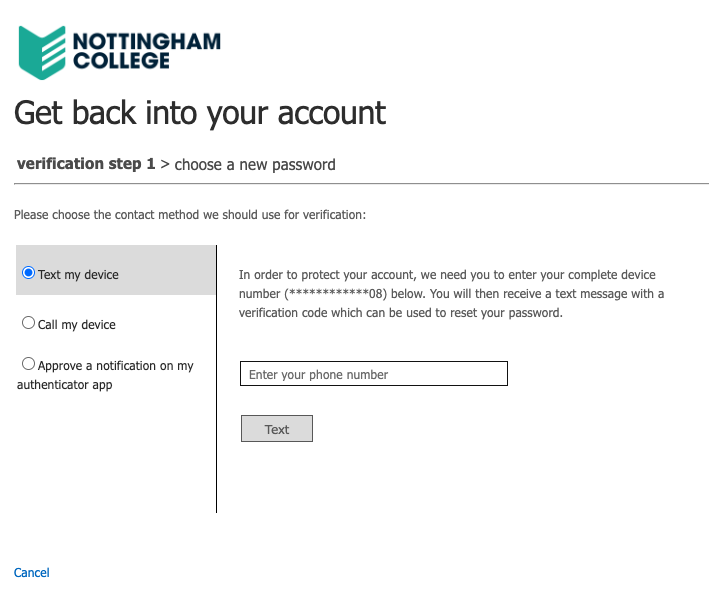
You will need to verify your account with one of the available methods presented. The quickest way is to use the Microsoft Authenticator app. Alternatively you can use the SMS or call options if these are available.
Once verified, you can choose a new password.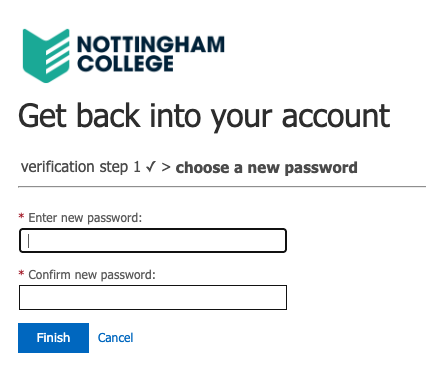
Your new password must meet the following password complexity requirements:
Contain at least 10 characters.
Not be included in Microsoft’s Banned Password List (passwords involved in known breaches).
Not previously used as a password on your account.
After you have reset your password, this change can take up to 15 minutes to be updated across various Microsoft systems such as Outlook, Microsoft Teams and other applications.
If you are unable to use the password reset portal, please contact our IT Service Desk for further assistance on 0115 912 5555.
- Article reference number: KA-01069
- Last updated: Tuesday 11th August 2026 6:15 pm