How to setup passkey authentication for Microsoft accounts
Passkeys are an alternative to using the Microsoft Authenticator mobile app. If you would like to set up the Microsoft Authenticator app instead, please see our setting up Microsoft Authenticator page.
Before setting up a Passkey, please check that your device meets the following prerequisites.
iOS (Apple)
iOS Version: Your device must run iOS 16 or later (iOS 17 or newer is
recommended for full features like password/passkey sharing)iCloud Keychain: Must be turned on in your device settings (Settings > [Your
Name] > iCloud > Passwords & Keychain or Settings > Passwords > Password
Options)Two-Factor Authentication (2FA): Must be enabled for your Apple Account.
Screen Lock: A device passcode, Face ID, or Touch ID must be configured
Android
Operating System: Android 9.0 or higher is required (Android 14+ is
recommended for the full Credential Manager experience)Screen Lock: A secure screen lock must be set up on the device (fingerprint,
facial recognition, PIN, or pattern)Google Play Services: An up-to-date installation of Google Play Services linked
to a Google account.
Go to the My Account page for your Nottingham College Microsoft account. This is accessible from any Microsoft 365 application in the top right-hand corner by clicking on the display picture and selecting “My Account”.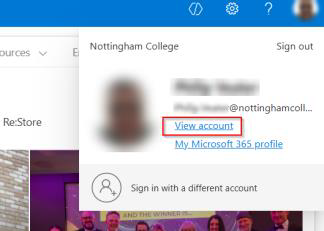
On the left menu that appears, select My Account, then Security Info.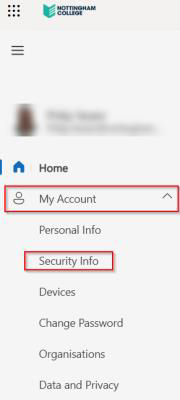
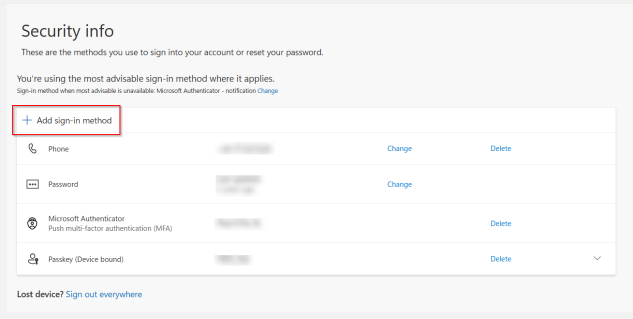
From the Security Info page, select Add sign-in method (you can also review your existing sign-in methods here)
For Add a sign-in method, choose Passkey.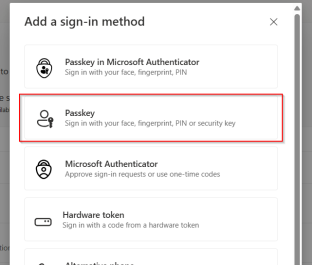
On the sign-in message, click next.
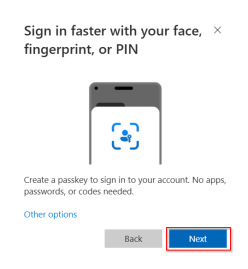
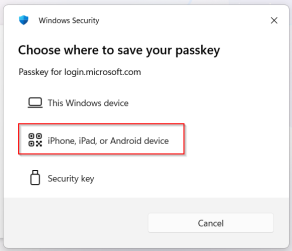
For the “Save your passkey” settings, change the default option from “This Windows device” to “iPhone, iPad, or Android device” to set up the Passkey on your mobile device.
Scan the QR code that appears with your mobile camera
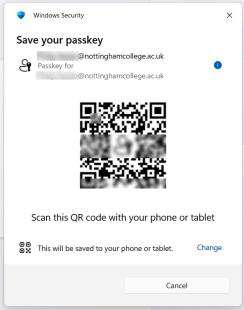
Follow the prompts on your mobile device to save the Passkey. Select Done on the browser. You will now be able to view the Passkey on your Security info page and use it to sign-in as your chosen MFA method when prompted.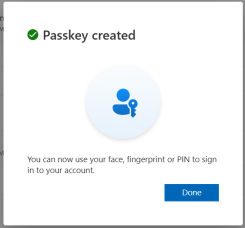
Note: If you lose or change your mobile device, you will need to contact the IT Service Desk to reset your MFA token to go through this process again on the new device.
If you require further assistance with setting up a passkey, please contact the IT Service Desk.
- Article reference number: KA-01149
- Last updated: Tuesday 24th November 2026 8:36 pm