
How to setup Microsoft Authenticator
When accessing Nottingham College systems through either a college-owned device or your own and logging into Microsoft 365 systems with either a nottinghamcollege.ac.uk or student.nottinghamcollege.ac.uk account, you are required to use multi-factor authentication. This guide explains what multi-factor authentication is and how to set it up for the first time, if you haven't already done so.
What is multi-factor authentication (MFA)?
Multi-factor authentication (which is also known as two-factor authentication) is an extra layer of security to protect digital accounts from security breaches. Instead of just entering your account password, you will also need to either confirm a sign-in/login with an additional prompt or provide a unique one-time passcode that is valid for around 30 seconds. This is provided by an authenticator application on a mobile device or sent via an SMS/text message.
Nottingham College uses Microsoft Authenticator for handling MFA requests.
Setting up multi-factor authentication
When logging into a staff or student college account for the first time, you will be prompted to set up multi-factor authentication. The following information will help you set up this important security feature to help keep your account secure. This process is only required for the first time it is initially set up on your college account. Once you've followed these steps, multi-factor authentication is permanently enabled.
It is recommended to use a desktop device if possible for the initial setup, so you can use your mobile device to set up the authenticator process freely without having to switch between different app screens.
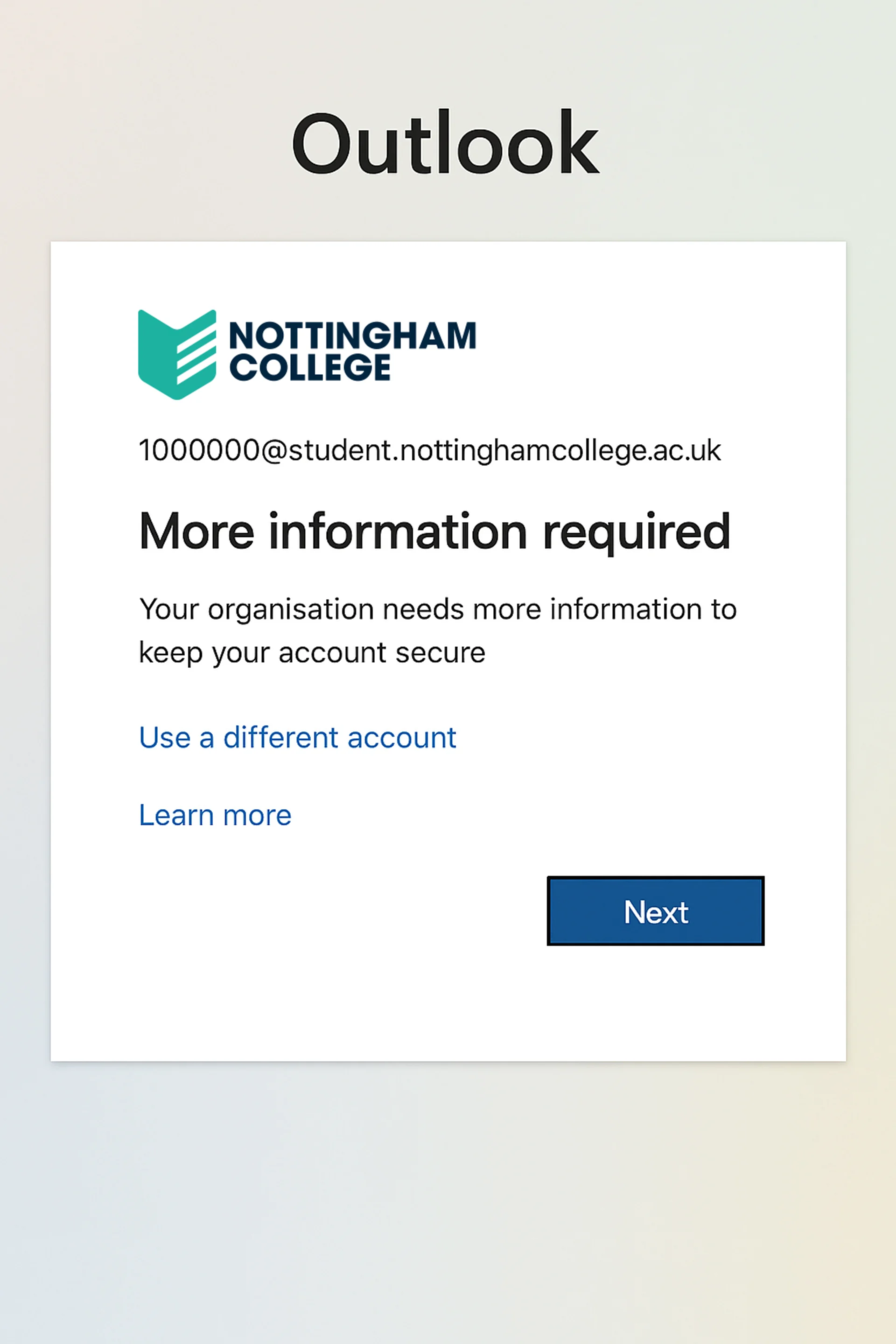
More information required prompt
When logging into your college account for the very first time, you will be prompted with a "More information required" message. This prompt message means you need to set up multi-factor authentication before you will be able to log in to any college systems.
Note: This is a mandatory process and cannot be turned off, skipped, or bypassed.
Use the next button to begin setting up multi-factor authentication.
Downloading the Microsoft Authenticator mobile application
You will be prompted to download the Microsoft Authenticator mobile application, which is available on the App Store for Apple/iOS devices and Google Play Store for Android devices.
Download the Microsoft Authenticator mobile app to your device from the relevant app store below.

Preparing to enrol your mobile device
On your mobile device, open the Microsoft Authenticator app that has been installed from your home screen or application menu, and press the plus sign ‘+’ in the top right-hand corner. Select "Work or school account" when prompted, now go back to your desktop device for the next step.

Scan the QR code
Press next on your desktop device, which should display a QR code on the screen. Use your mobile device to scan the QR code, then press next. Make sure to scan the QR code with the Microsoft Authenticator app, rather than your camera application.
Note: Do not scan the example QR code on this page, as it is for demonstration purposes only and will not work.

Approve the test notification
Once you have scanned the QR code on your mobile device this will enrol your mobile device for multi-factor authentication. A test notification will be sent to your Microsoft Authenticator app to ensure the process has worked. Press approve on your mobile device to complete this step.

You've successfully setup multi-factor authentication!
If successful, you will now see a success message to confirm that enrolment for multi-factor authentication was completed. You can now press next and then next again on the success screen to complete the process.
Going forward you will be prompted for multi-factor authentication when logging into certain college systems, which use Microsoft 365/Entra ID for handling logins.

Frequently asked questions about MFA
Yes, all college accounts (staff and students) require multi-factor authentication to be enabled. This is enforced by our IT/security policy and is an important security measure to help keep our data and systems secure.
Multi-factor authentication makes your account more secure by requiring an additional step before being able to access college systems, which isn't just your password. It is always best practice to use strong/secure passwords, but these can be difficult to remember without using software like password managers. Multi-factor authentication helps prevent password breaches from leading to unauthorised access or intrusion into college systems.
You may already be using multi-factor authentication on other accounts or digital services you use regularly, such as accessing your bank account, social media accounts, and other services.
Any college system that uses Microsoft 365/Entra ID for authentication. Prompts for multi-factor authentication will occur on both college-owned and personal devices.
Examples of college systems include:
- Any Microsoft 365 applications such as Word, Excel, and PowerPoint, for both desktop and web apps.
- OneDrive for Business (for your staff/student account)
- Microsoft Teams
- Staff systems such as StaffNet, EBS, reporting/dashboards, VPN etc.
- Student systems like StudentNet, My Nottingham College (formerly eILP), Learner Hub (if using your college student login)
For systems that use Google Workspace with your college account email address, this will also authenticate through Microsoft Entra ID and prompt for multi-factor authentication.
Whenever you see the sign-in box with the Nottingham College logo, this is using Microsoft 365/Entra ID login.

If you are using the same device to access college systems, you can tick the "Don't ask again for 28 days" box as shown below when a multi-factor authentication challenge appears. This will reduce repeated multi-factor authentication requests.

Note: This feature will only work when logging into systems from the same device.
No. The Microsoft Authenticator mobile application does not provide any additional access to your personal device storage or contents. Nottingham College does not have any remote access or control of any personal devices through the Microsoft Authenticator app.
The Microsoft Authenticator application may request permissions for using features like your camera e.g. for scanning a QR code, but these are normal permission requests and will be prompted for when first used. You can also control any permissions for apps through your mobile device settings and amend them at any time.
No. If you do not wish to install the mobile application, your phone does not meet the minimum requirements, or you do not own a smartphone, you can instead receive multi-factor authentication codes via text message/SMS. On the set up your account screen, select "I want to use a different method" and choose the Phone option when prompted. You will be required to enter your mobile number, which is where multi-factor authentication codes will be sent.

Nottingham College recommends using the Microsoft Authenticator application where possible as it is quicker to action multi-factor authentication requests with sign-in prompt notifications on your mobile device.
If you receive a multi-factor authentication request on your mobile device that you did not expect or initiate, please ignore or deny this request. Microsoft applications can occasionally trigger multi-factor authentication requests without being directly visible, such as background applications running on a PC or laptop. When not sure, do not approve such requests. Multi-factor authentication requests will timeout after a certain amount of time, and if required, you can trigger a new multi-factor authentication prompt.
If you continue to receive unexpected MFA prompts, you should change your password.
No. Nottingham College will never ask for your multi-factor authentication code/token directly. In some situations, when either in person or providing remote assistance, an IT staff member may ask you to proceed through multi-factor authentication if necessary for troubleshooting or assisting you with an IT helpdesk query related to a Microsoft Entra/Microsoft 365 application.
Never share any one-time code displayed in your Microsoft Authenticator app with anyone else.
The minimum system requirements are:
- iOS 15 or newer for iPhone/iPad
- Android 8.0 or newer for Android devices
Older versions of iOS/Android will not allow you to install the Microsoft Authenticator application. This is a minimum system requirement set by Microsoft and not Nottingham College. If you are unable to install the Microsoft Autenticator application due to these restrictions, you can still set up multi-factor authentication by phone/SMS.
You will need to reset your MFA token and follow the setup instructions on the new device.
Please contact our IT Helpdesk on 0115 912 5555 to reset your current MFA settings. Once this has been completed, you can go through the setup process on a new device.
Microsoft publishes its own frequently asked questions page about Microsoft Authenticator. You can read further details and information on how the mobile application works and its key functionality.
If you require any clarification or need assistance when setting up multi-factor authentication, please contact the IT Service Desk directly on 0115 912 5555.
Students can also speak to their tutor, who can help liaise with our IT Service Desk if needed.